
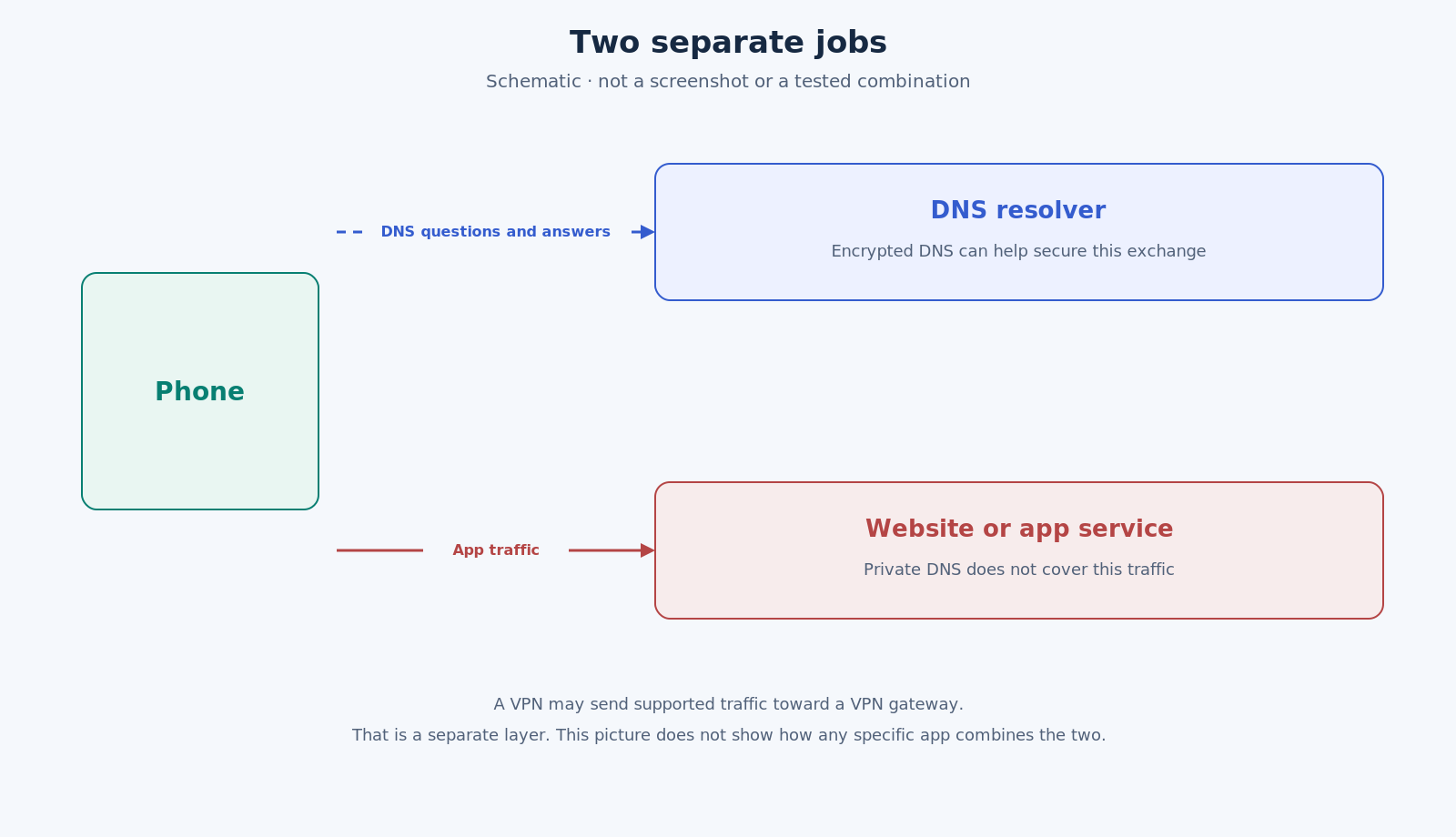
Your phone does two different jobs when you open a site or an app. First it asks a DNS resolver which address matches a name. Then it sends the app’s own traffic toward that destination. Android’s Private DNS setting is about the first job. A VPN is about the path that traffic can take. That is why “is Private DNS a VPN?” and “should I use Private DNS with a VPN?” so often get tangled together.
What Private DNS protects
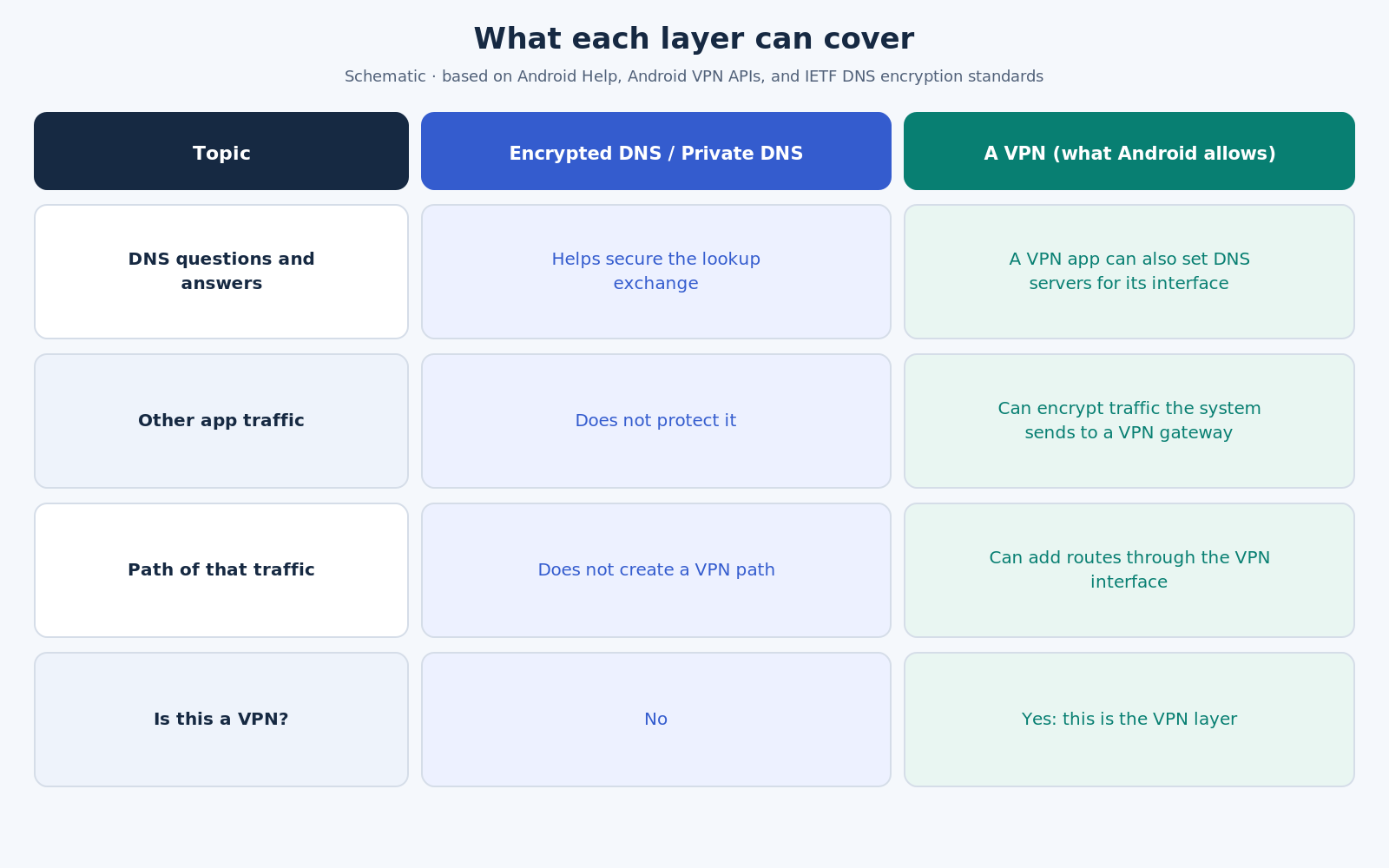
Google’s Android Help page is plain about the scope: Private DNS helps secure only DNS questions and answers. It cannot protect anything else. See Manage advanced network settings on your Android phone.
By default, the device uses Private DNS with all networks that can use it. Google recommends keeping Private DNS turned on. The same page lists three choices: Off, Automatic, and Private DNS provider hostname.
To change the setting, open the Settings app and tap Network & internet, then Private DNS. If you cannot find that item, search for “Private DNS.” If it still does not appear, Google says to get help from the device manufacturer. Menu names vary from phone to phone, and some of the steps on that help page apply only to Android 12 and later.
Two public standards describe how a device can encrypt those questions and answers on the way to a recursive resolver. DNS over TLS (RFC 7858) sends DNS messages inside a TLS session and focuses on stub-to-recursive traffic. DNS Queries over HTTPS (RFC 8484) maps each DNS query and response onto an HTTPS exchange. Both are about protecting DNS lookups in transit. Neither document turns the rest of your pages, calls, or file transfers into a VPN, and neither tells you which of those transports Android’s Private DNS screen uses on every device.
What a VPN can change
Android’s developer guide to VPN describes a different layer. A VPN app can create a local interface, read outgoing packets, encrypt them, and send them to a VPN gateway, then decrypt the replies and write them back. The same APIs let the app add routes—including an open route that accepts all destinations—and add DNS servers for that interface.
If the app does not create an allowed list or a disallowed list of installed apps, the system sends all network traffic through the VPN. If it does create one of those lists, only some apps use the VPN. There is only one active VPN service per user or work profile. The first time an app asks to become the VPN, Android shows a connection request so you can accept or refuse it.
So a VPN is built to change how supported traffic is carried to a gateway. Encrypted DNS is built to protect name lookups. One setting does not automatically do the other job.
Is Private DNS a VPN?
No. Private DNS is Android’s name for a system setting that can help secure DNS questions and answers. A VPN is a tunnel that can take over routing for the traffic the system sends into it.
That also means Private DNS is not a lighter VPN. It may be the right tool if you only want those lookups protected. It is the wrong tool if what you actually want is a VPN path for app traffic.
Using both: there is no single switch recipe
Advice about combining Private DNS with a VPN often points in opposite directions. Some write-ups tell you to leave Private DNS on Automatic while a VPN is connected. Others tell you not to point Private DNS at a separate provider at the same time.
Those opposite tips can both be offered in good faith, because they assume different internals. Android lets a VPN app install DNS servers on its VPN interface. Android also lets you name a Private DNS provider. What the first-hand sources above do not give us is one rule for every phone and every VPN: they do not say that Private DNS always stays in control after a VPN connects, that the two always leak, or that they never do.
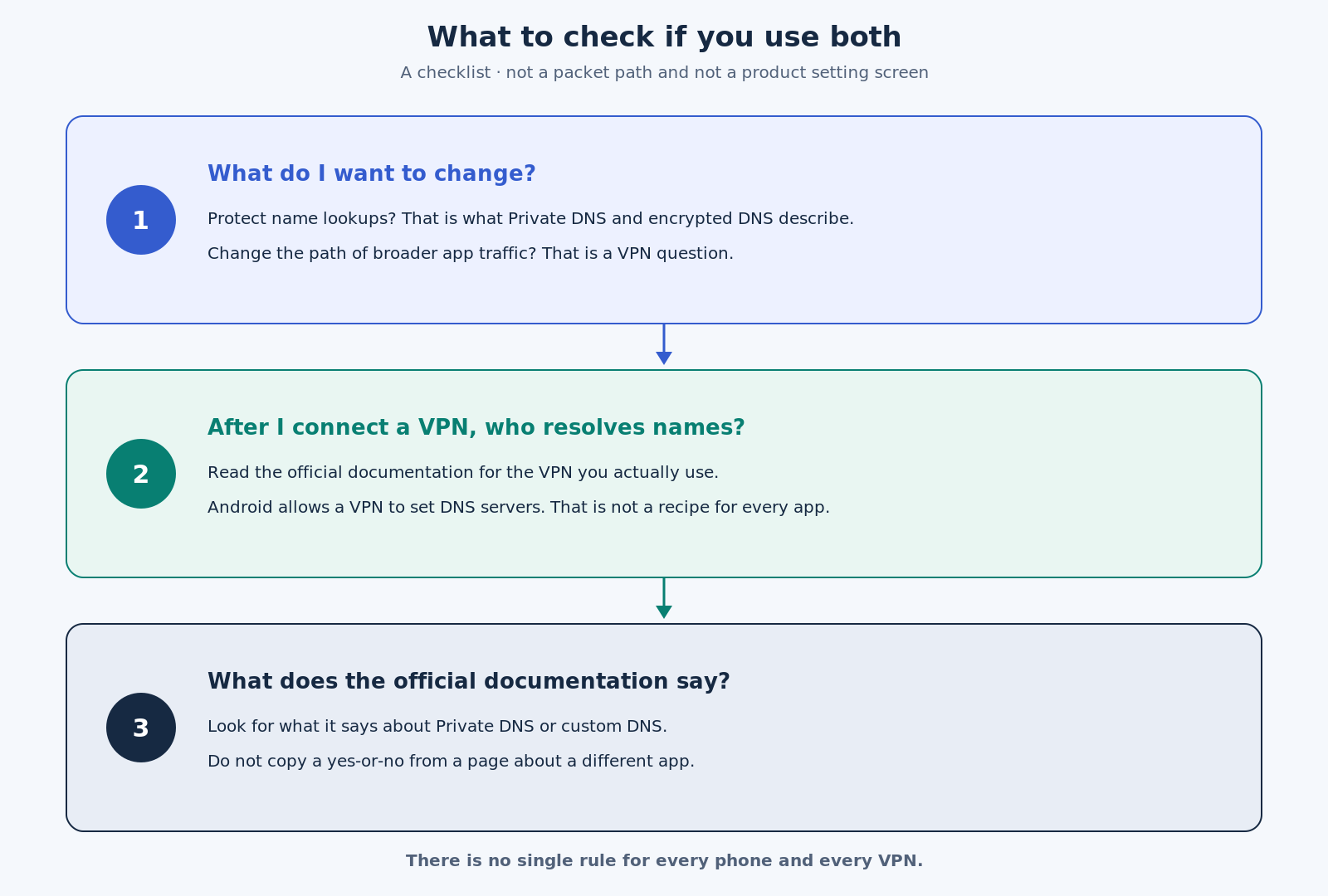
The useful question is therefore not “is combining them always fine?” It is “in this setup, who is answering DNS, and does that match what I want?” The place to answer that for a specific app is that app’s official documentation.
Three questions worth checking
- What am I trying to change? If you want to protect name lookups, that is the job Private DNS and the encrypted-DNS standards describe. If you want supported app traffic to take a VPN path to a gateway, that is a VPN job.
- After I connect a VPN, who is resolving names? Read the official documentation for the VPN you use. The Android APIs allow a VPN to set DNS servers, but they do not tell you what any one product actually does.
- What does that documentation say about Private DNS or custom DNS? Follow the product’s own guidance. If it does not mention the combination, do not copy a yes-or-no from a page about a different app.
If you use VineVPN or VinePass
This article does not describe how VineVPN or VinePass handle DNS. That belongs in each product’s own documentation. If a setting on your phone raises a question, use the official support channel for the app you actually have:
- VineVPN: VineVPN Support Center or support@vinevpn.com
- VinePass: VinePass Support Center